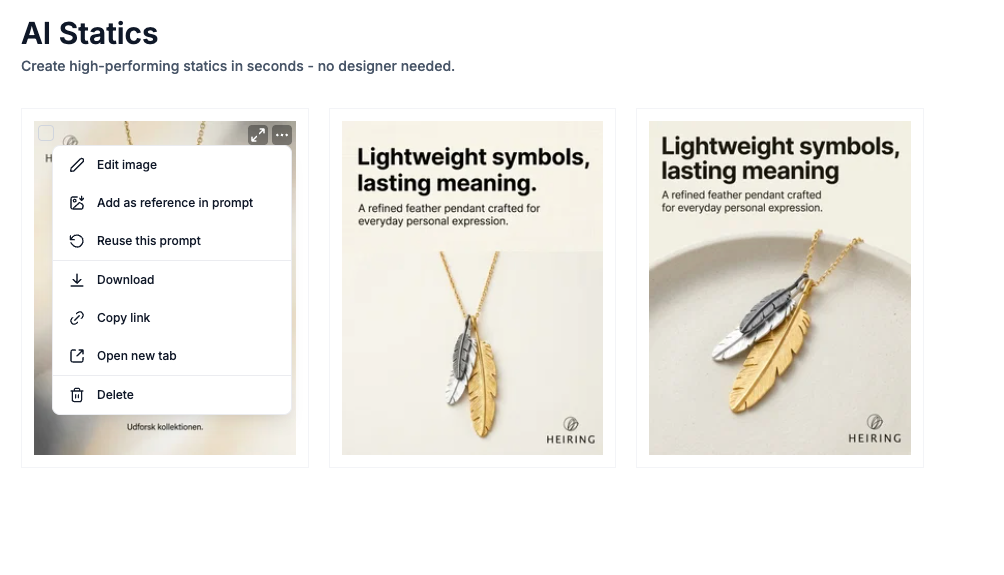
You can save your generated statics to a specific folder to keep your work organized - especially useful when managing multiple brands or campaigns.
How to save a static to a folder
Tip: Create folders by brand, campaign, or month to keep your statics easy to find and manage over time.
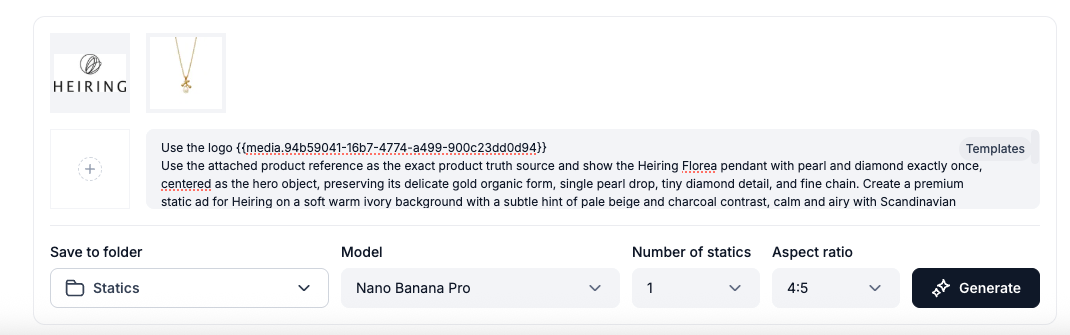
Download a Static or Change Its Aspect Ratio
Once a static has been generated, you can download it for use in your campaigns, or generate a new version of it in a different aspect ratio - without having to recreate the prompt from scratch.
How to download a static
How to change the aspect ratio of an existing static
Note: Changing aspect ratio generates a new static and counts as one generation toward your monthly quota.
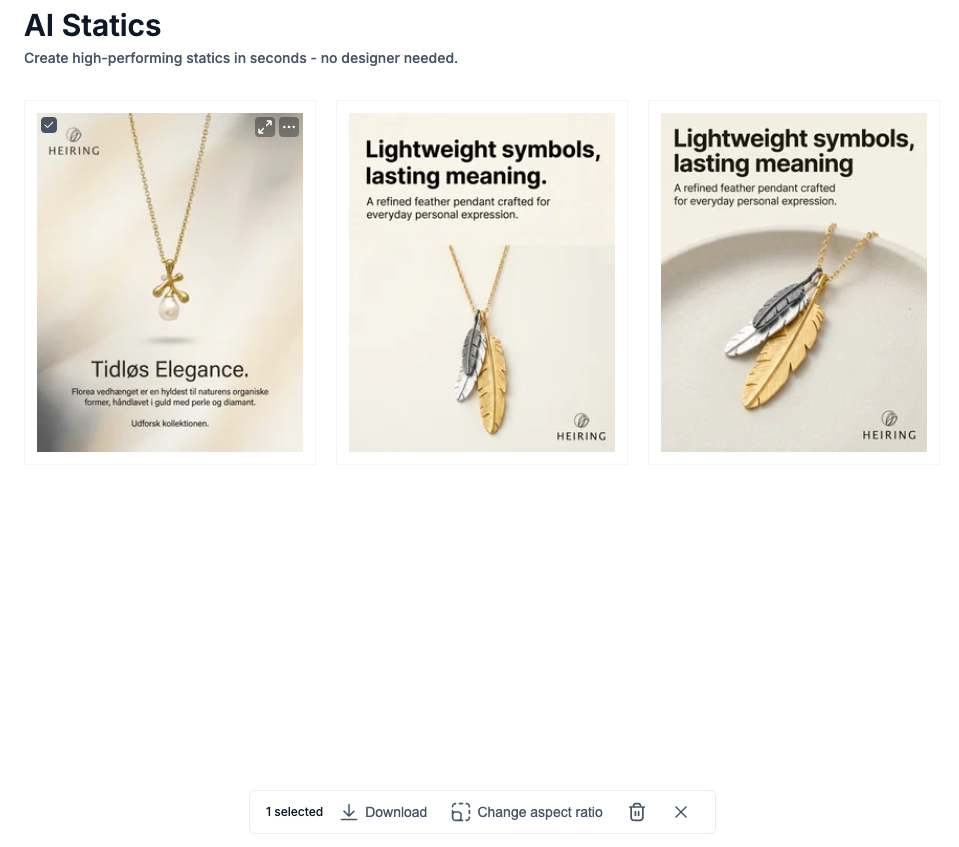
Preview a Static and Reuse Its Prompt
Each generated static stores a full record of how it was created — including the prompt used, all reference images added, and the AI model that generated it. You can review this information at any time and reuse the prompt to create new variations.
How to preview a static and view its details
Tip: Reusing a prompt is a fast way to create new variations of a static that performed well - just tweak one element and generate.
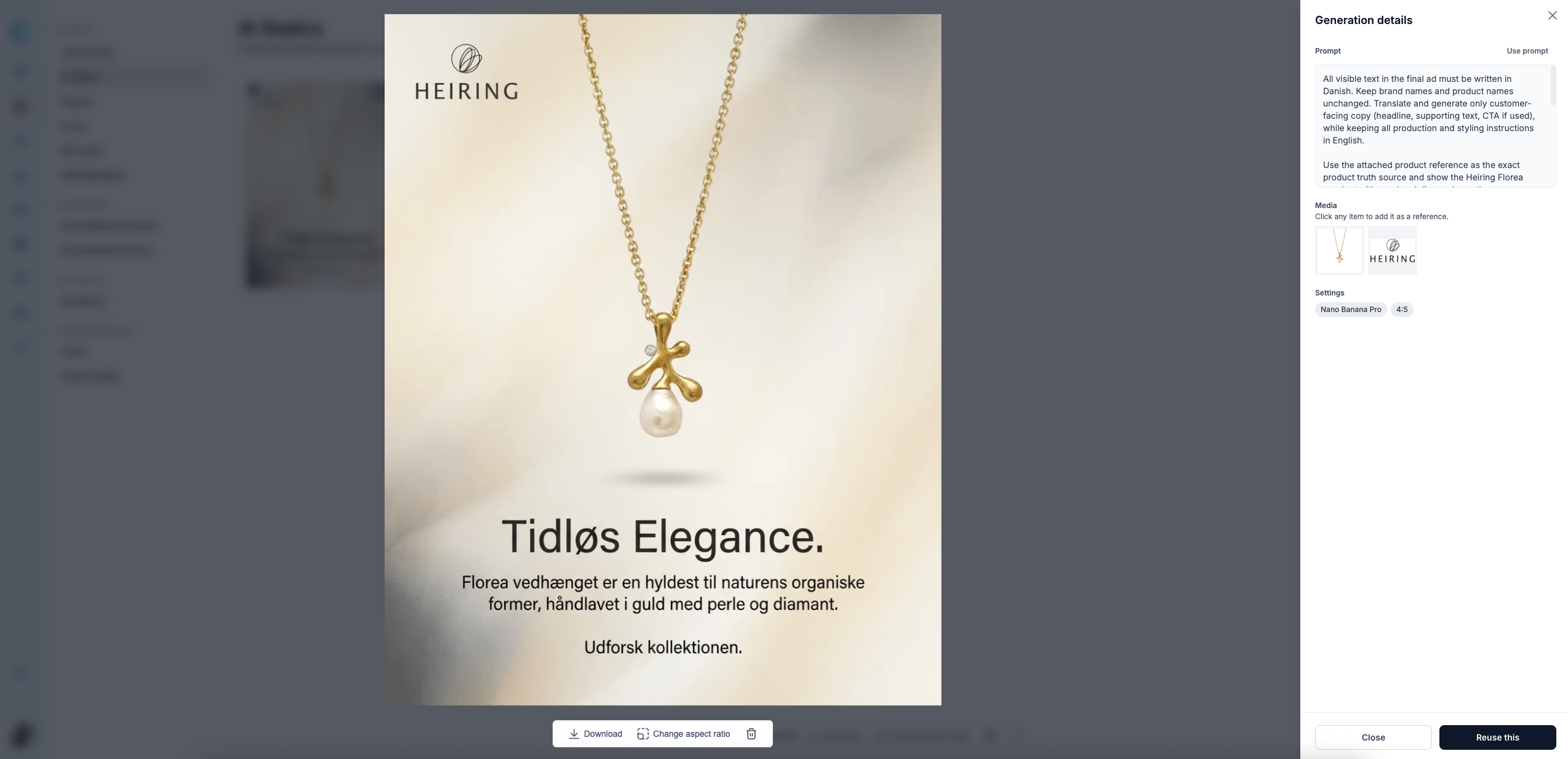
Add a Current Static as a Reference
You can use any of your previously generated statics as a visual reference when creating new ones. This helps you maintain a consistent look and feel across a set of ads by guiding the AI toward a style you have already approved.
How to add a current static as a reference
Tip: This is especially useful for maintaining visual consistency across an ad campaign - generate one strong static, then use it as a reference for all the variations.