Campaign Builder Help Center

Getting Started with AI Statics

Generate a Brand DNA

Brand DNA is a smart profile of your brand that Campaign Builder generates automatically from your website. It captures your brand voice, color palette, product style, and audience - so your AI-generated ads stay on-brand without manual setup. Please note that the Brand DNS is only applied when generating statics through templates.
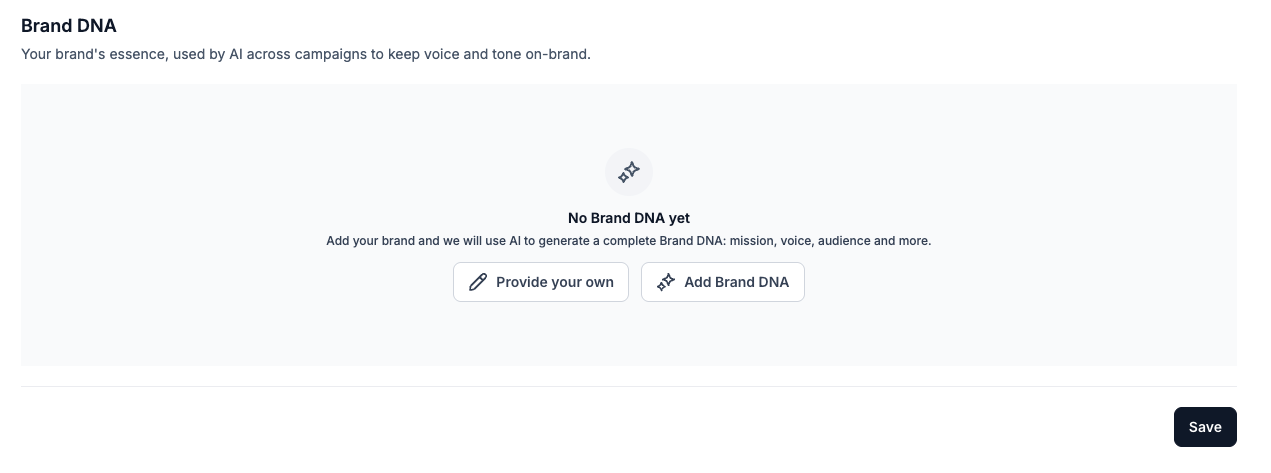
How to generate your Brand DNA

  • Go to the Settings section in Campaign Builder. https://app.campaignbuilder.io/settings/workspace
  • Click Create Brand DNA (or open the Brand DNA panel if one already exists).
  • Enter your company name in the Company Name field.
  • Enter your website URL (e.g. https://yourwebsite.com).
  • Click Generate. Campaign Builder will scan your website and build your Brand DNA automatically.
  • Review the generated profile. You can edit any field manually if needed.
  • Click Save to confirm your Brand DNA.

Note: Brand DNA is used as the foundation for all statics you generate through templates. The more accurate it is, the better your results will be.

Tip: If your website is recently updated, regenerate your Brand DNA to keep it current.

Free Statics - No Plan Required

You can start generating statics right away without a paid plan. Every account includes 5 free static generations per month, so you can explore the feature before committing to a subscription.

How free statics work

  • You receive 5 free static generations every calendar month.
  • Free generations reset automatically at the start of each month.
  • No credit card is required to use your free statics.
  • Once your 5 free statics are used, you will need a plan or your own Google Studio API key to continue generating.

Note: Generating up to 5 statics at once counts as 5 generations toward your monthly allowance.

Use Your Own Google Studio API Key

If you prefer to manage your own AI usage and costs, you can connect your personal Google Studio (Google AI Studio) API key. When an API key is added, Campaign Builder uses your key for all generations - meaning you pay Google directly and are not limited by your Campaign Builder plan's generation quota.

How to add your Google Studio API key

  • Open Settings in Campaign Builder.
  • Navigate to integrations > Select Google Gemini and click connect.
  • Paste your Google Studio API key into the API Key field.
  • Click Save.
  • Campaign Builder will verify the key. Once confirmed, all future generations will use your own key.

Related help articles
Find additional guides and documentation that expand on this topic and help you solve similar issues.
View all help articles