Campaign Builder includes 40 ready-to-use prompt templates designed for different ad styles and goals. Each template is pre-written - all you need to do is add your product page URL and a product image.
How to use a prompt template
Tip: Templates are organized by creative style. Browse a few to find one that matches the type of ad you want to produce.

Write Your Own Prompt
If you want full creative control, you can skip the templates and write your own prompt from scratch. This is useful when you have a very specific creative direction in mind.
How to use your own prompt
Note: You can insert reference tags directly into your custom prompt to tell the AI which specific images to use. See the Customizing Your Creative article for details on reference tags.
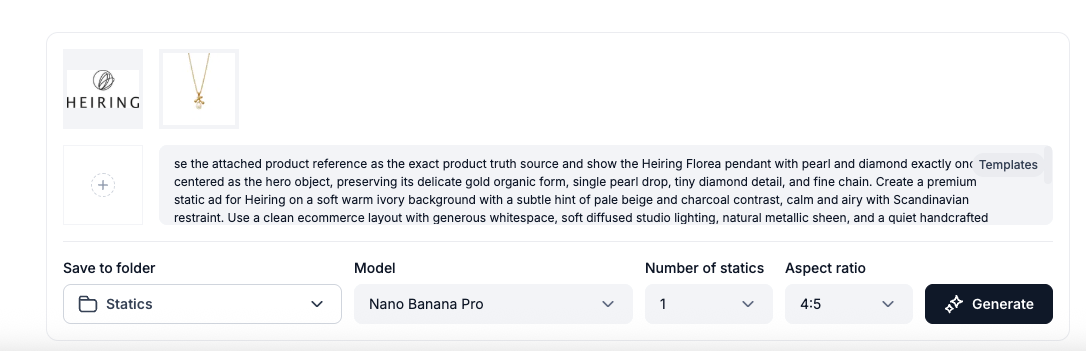
Select an Aspect Ratio
Before generating, choose the aspect ratio that matches where you plan to run the ad. Campaign Builder supports five formats:
How to select an aspect ratio
Tip: You can also change the aspect ratio of an existing static after generation - see the Managing & Reusing Statics article.
Generate Up to 5 Statics at Once
Instead of generating one static at a time, you can generate up to 5 variations in a single run. This is useful when you want multiple creative options to choose from or plan to A/B test different versions.
How to generate multiple statics
Note: Each static in the batch counts as one generation toward your monthly quota. Generating 5 at once uses 5 generations.

