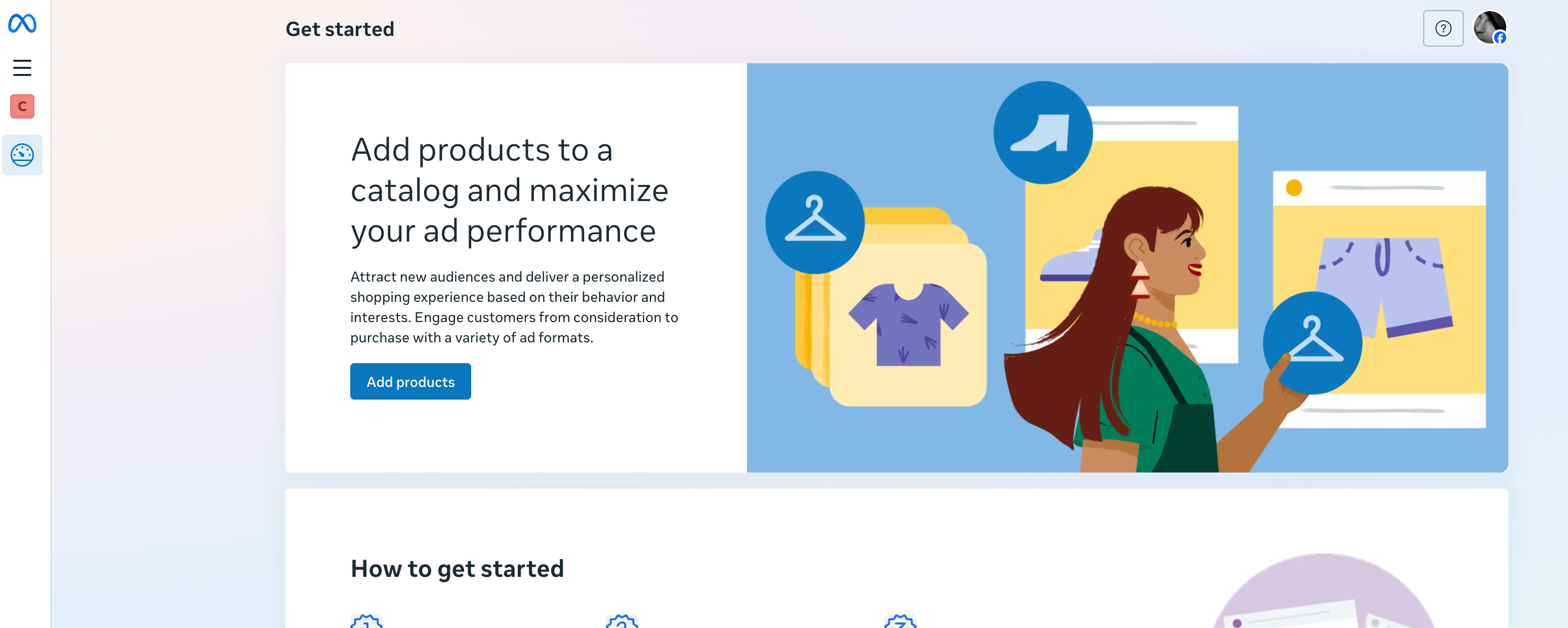
https://business.facebook.com/commerce/?business_id=1xxxxxxxx
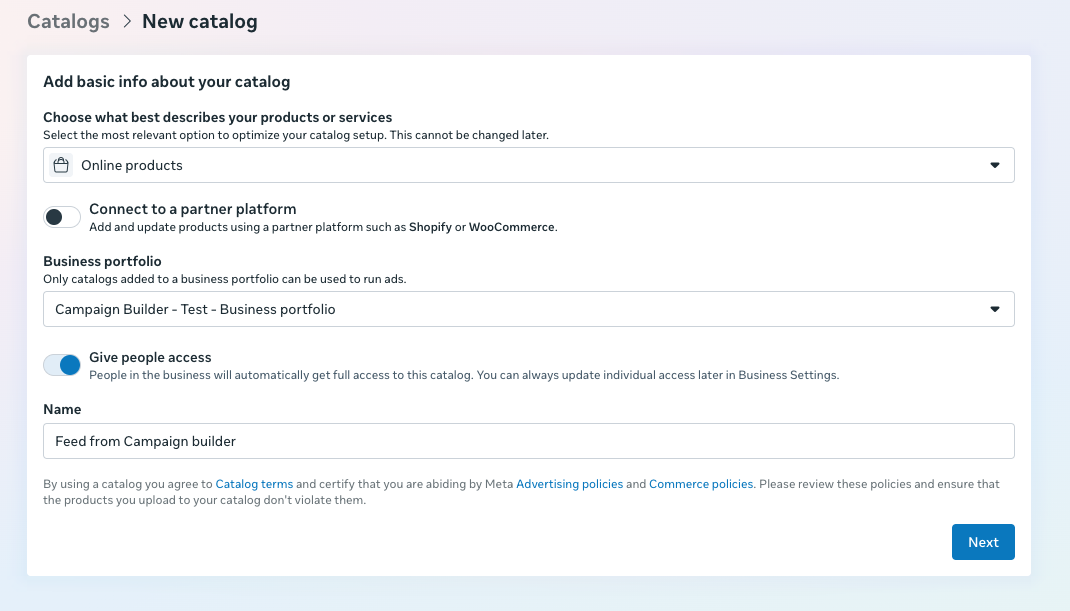
If you run an ecommerce store, select Online Products, then give your feed a clear, recognizable name - such as “Campaign Builder Feed” - so it’s easy to identify later.
Choose the pixel(s) you want to use for retargeting - these will track user activity and power your audience targeting.
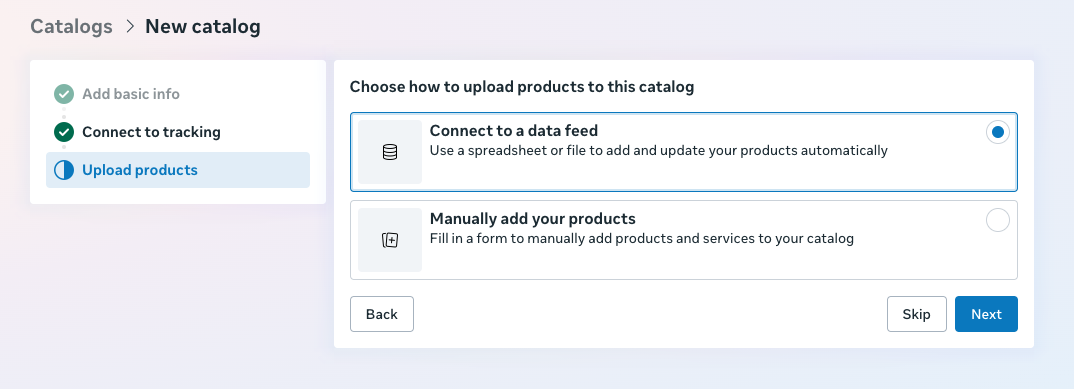
In this step, select “Connect to a data feed.”
Paste the product URL provided by Campaign Builder.
.png)
Select the currency used in your feed and set the update frequency. We typically recommend daily updates to ensure your product data stays accurate and up to date.
.png)
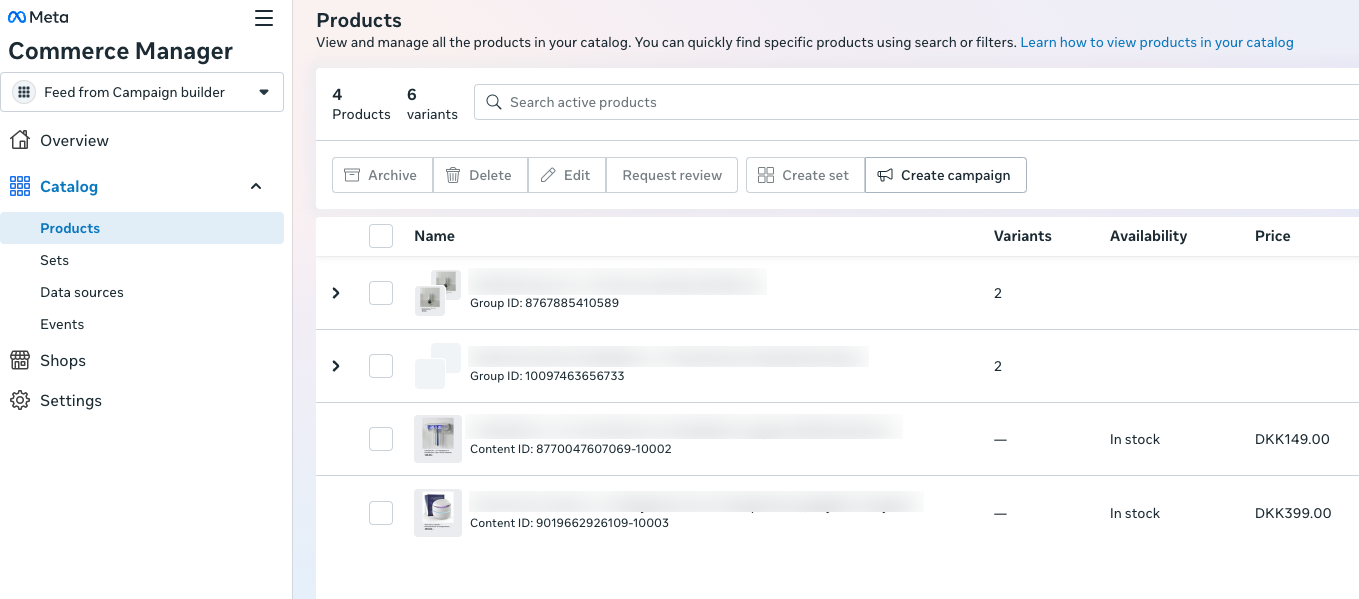
Go to Products to confirm that Meta has successfully imported your catalog. Once everything looks correct, you’re all set to start creating your ads.