This guide walks you through how to install the Campaign Builder Shopify app, choose a plan, and set up your Dynamic Product Ads (DPAs). Once installed, Campaign Builder automatically connects to your Shopify store and generates product feeds you can use across advertising platforms that support Dynamic Product Ads.
Install the Campaign Builder app from the Shopify App Store: https://apps.shopify.com/campaign-builder-2
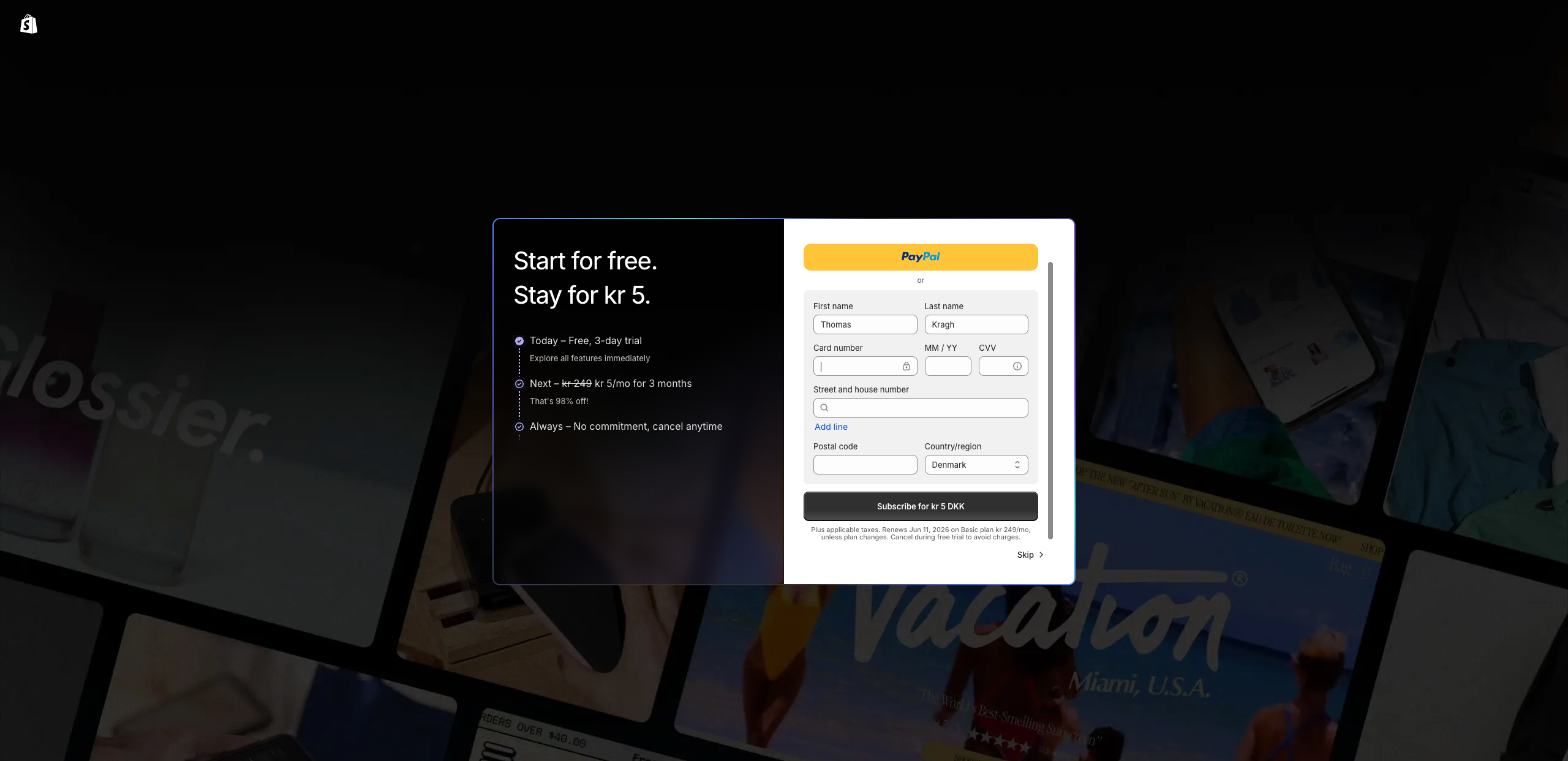
Before installing apps, make sure your Shopify store has a valid payment method configured.
Shopify uses your store’s billing method to charge for app subscriptions and usage. If no payment method is added, you may be asked to configure one before continuing with the installation.
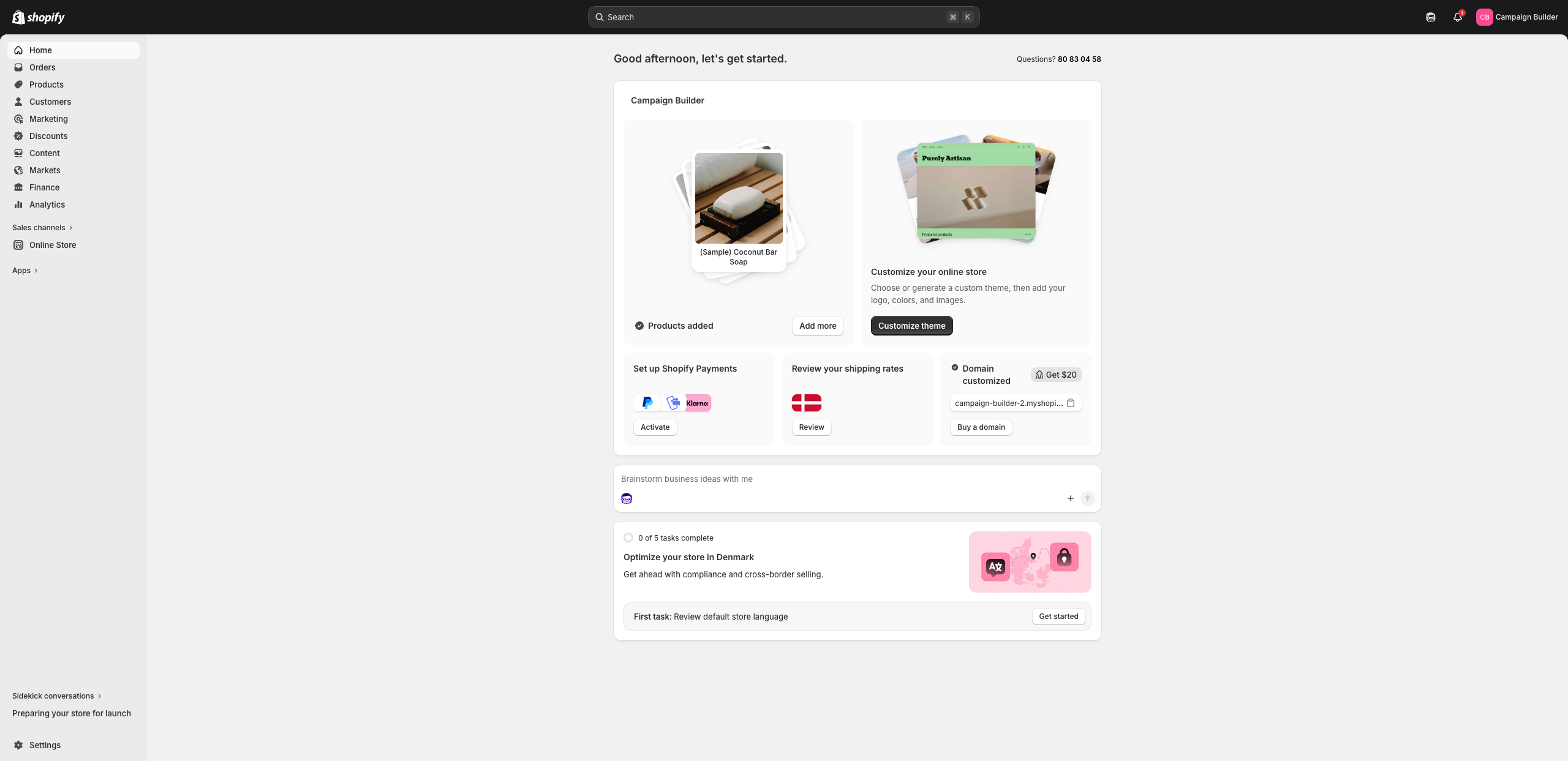
Log in to your Shopify admin and go to your store dashboard. From here you can access all store settings, products, and apps.
To install a new app, navigate to the Apps section in the left-side menu.
Inside the Apps section, click Shopify App Store or use the search bar to find new apps.
Search for Campaign Builder to locate the app.
.png)
When you find Campaign Builder in the Shopify App Store, click the app listing to open the product page.
Here you can review features, pricing, and installation details before adding the app to your store.

Click Install to start the installation process.
Shopify will redirect you to your store’s admin panel where you can complete the installation.
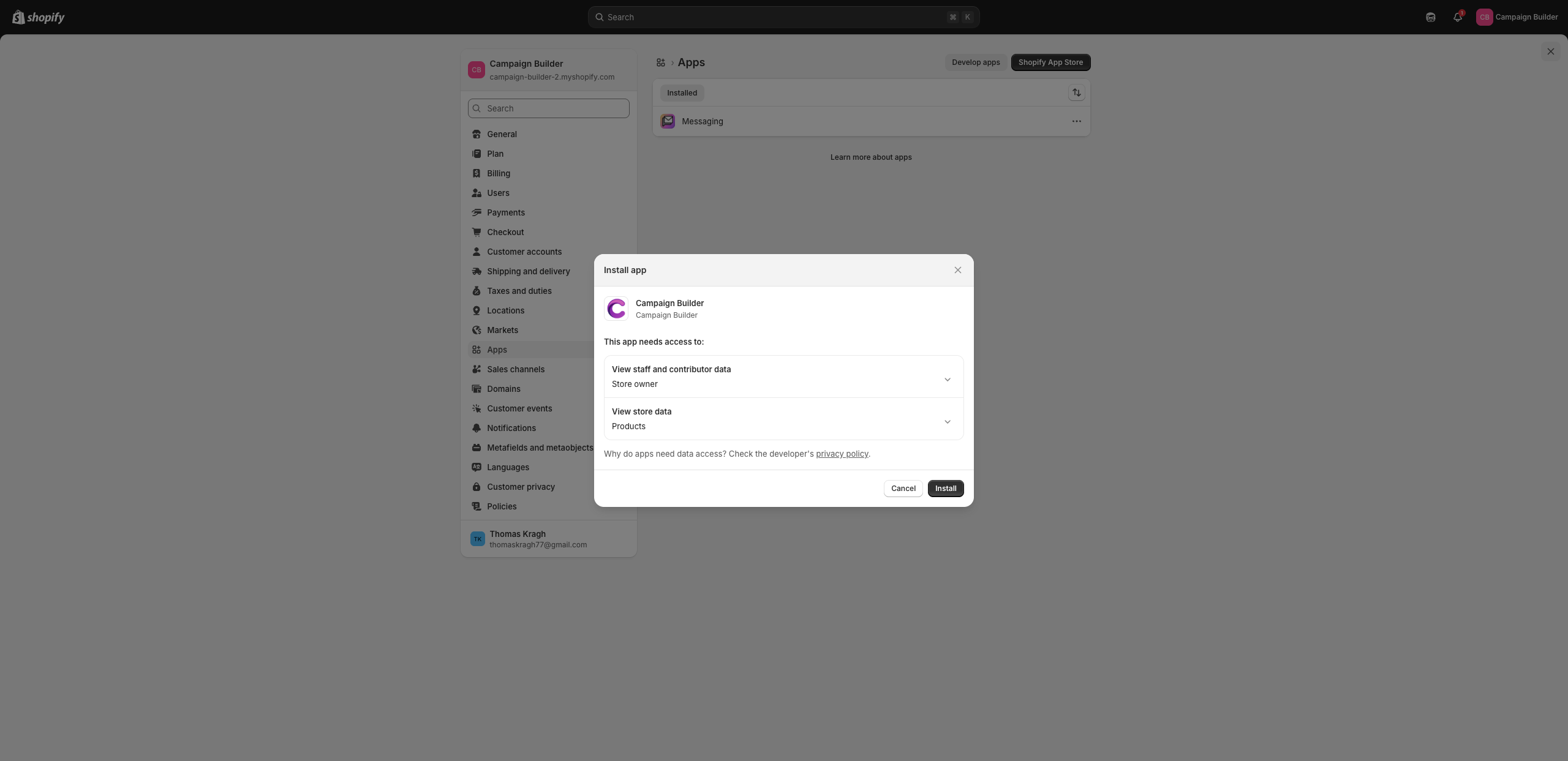
When installing apps from the Shopify App Store, Shopify will always show what data and permissions the app needs access to before installation.

Before the app can be installed, Shopify will show the permissions screen.
Campaign Builder requires access to certain store data, such as products and store information, in order to generate product feeds and create Dynamic Product Ads.
Click Install App to grant the required permissions and continue.
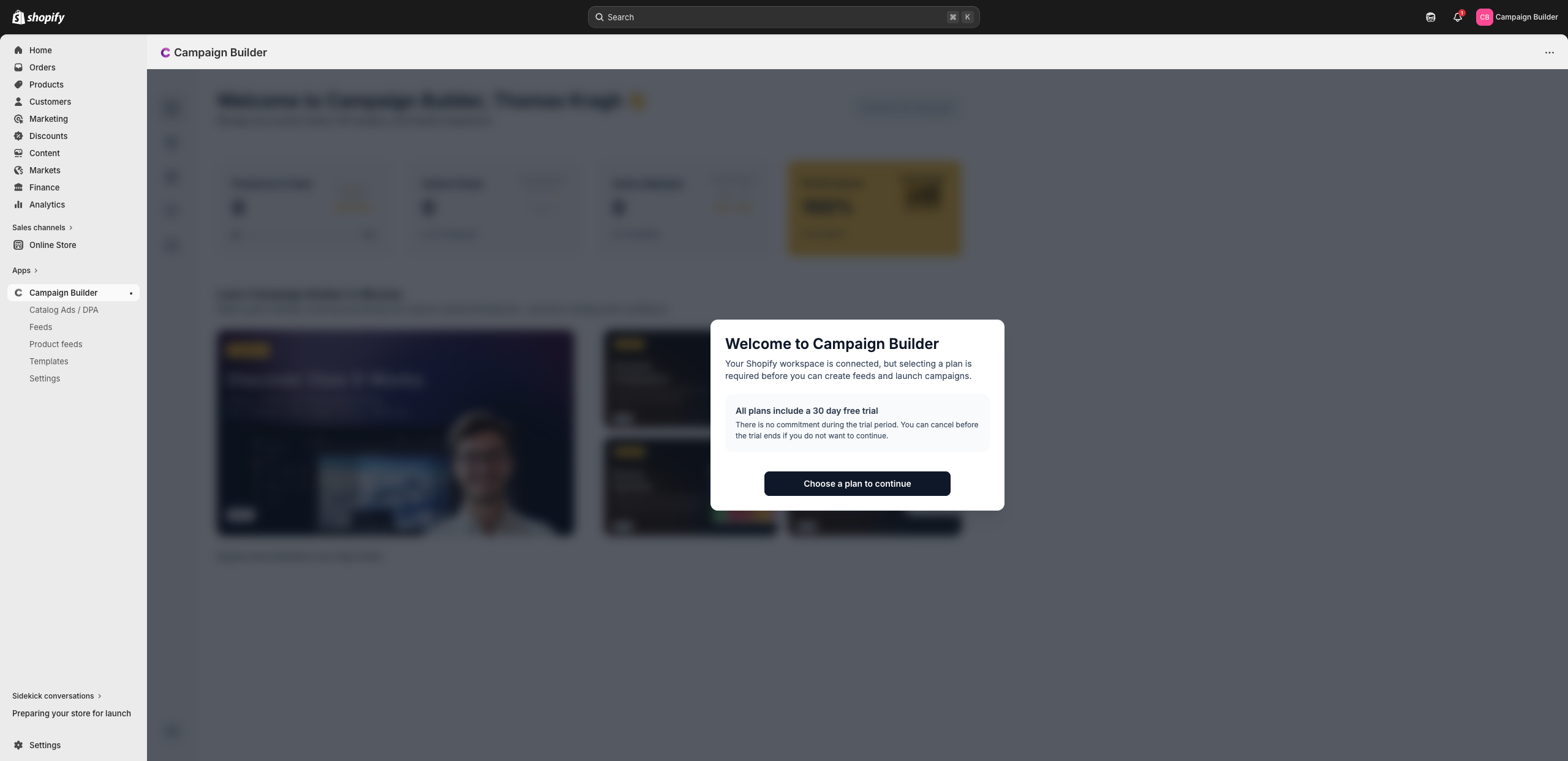
After installation, you will see a welcome message inside Campaign Builder.
To start using the platform, click Go to Plan to select the subscription that fits your needs.
Select the plan that matches your store size and the number of product feeds you need.
All plans include a 30-day free trial, allowing you to explore the platform before being charged.
.png)
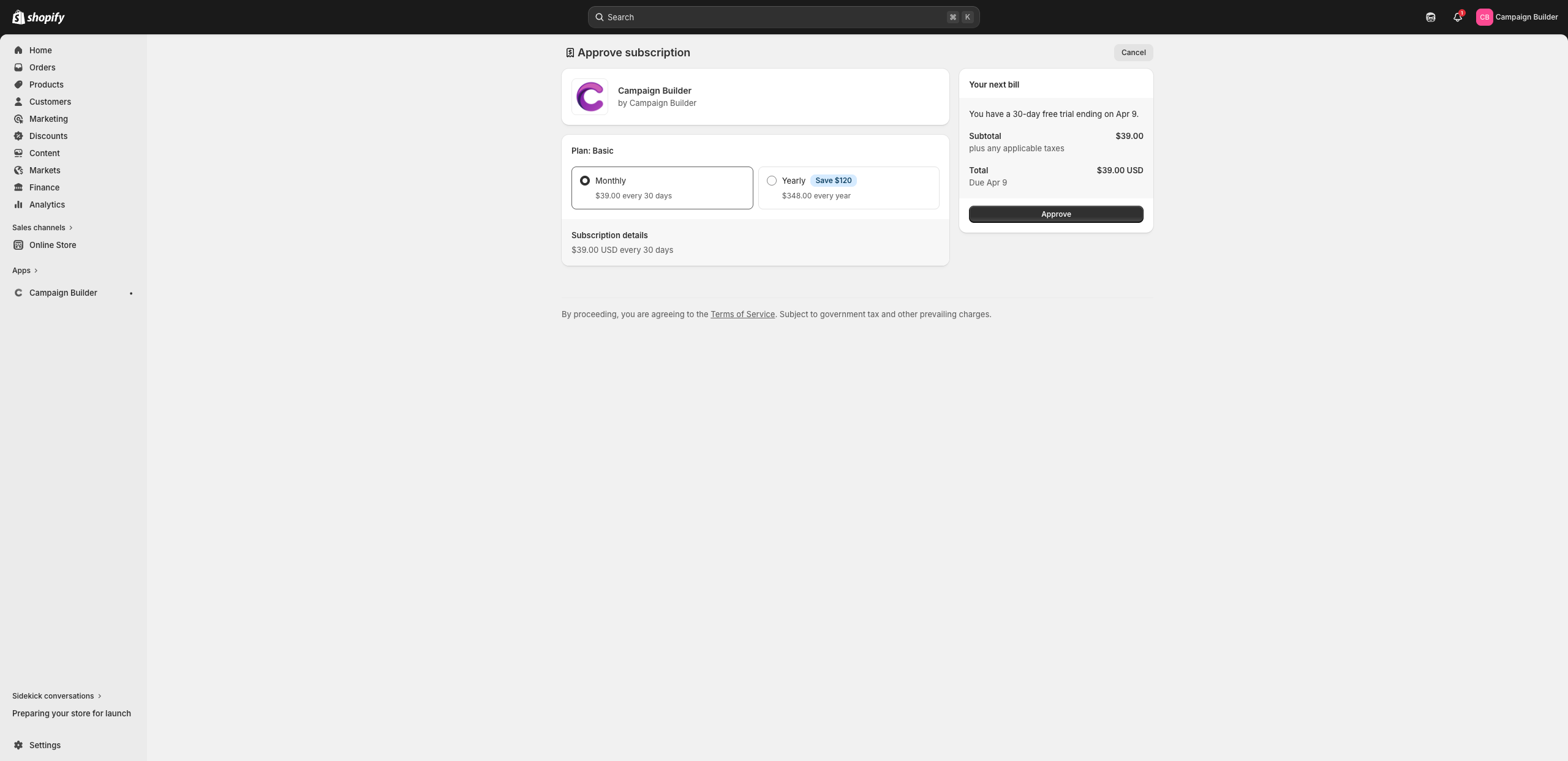
Once you select a plan, Shopify will ask you to confirm the subscription payment.
The app subscription will be added to your Shopify billing, and charges will appear on your regular Shopify invoice.
During onboarding, select the markets you want to use.
Campaign Builder will automatically create a product feed for each selected market, ensuring your product data is structured correctly for advertising platforms.
.png)
After the onboarding step is completed, Campaign Builder will automatically generate a basic Dynamic Product Ads setup.
Your Shopify products will start syncing, and a ready-to-use DPA design will be created for you.
.png)
In the final onboarding step, you will find:
You can copy the feed URL and use it in advertising platforms that support Dynamic Product Ads.
.png)
Once the installation is complete, you will have access to the Campaign Builder dashboard.
.png)
The dashboard provides a quick overview of:
From here you can easily access the main areas of the platform.
In the Catalog Ads section, you can create and customize your Dynamic Product Ads.
The visual builder allows you to:
All ads update dynamically based on your Shopify product feed.
.png)
The Feeds section shows all products imported from your Shopify store.
Here you can:
This ensures your product data is optimized before being used in advertising campaigns.
.png)
Each feed generated by Campaign Builder can be used in advertising platforms that support Dynamic Product Ads, including platforms like Meta.
Simply copy the feed URL and paste it into your marketing platform when creating a product catalog.
The feed will stay synchronized with your Shopify store automatically.
.png)
The Templates section includes pre-designed catalog ad layouts.
You can use these templates as a starting point for your campaigns and customize them to match your brand and creative strategy.
.png)
In the Settings page you can manage your account and configure the app.
This includes:
You can also connect your Facebook account here to view performance data for your Dynamic Product Ads.
.png)

