QR Codes in Campaign Builder make it easy to connect the physical and digital worlds. With a quick scan, your audience can open a link, send an email, view a message, or even make a call - all without typing a thing.
You can use QR Codes across your marketing assets, such as print materials, product packaging, in-store signage, and even inside your ads, popups, or forms.
In this article, you’ll learn how to:
Create your first QR Code
Choose the type of action your QR triggers
Customize its appearance
Download and publish it anywhere
Step 1: Create a new QR Code campaign
Go to Products → QR Codes in the left menu panel.
Click Create campaign.
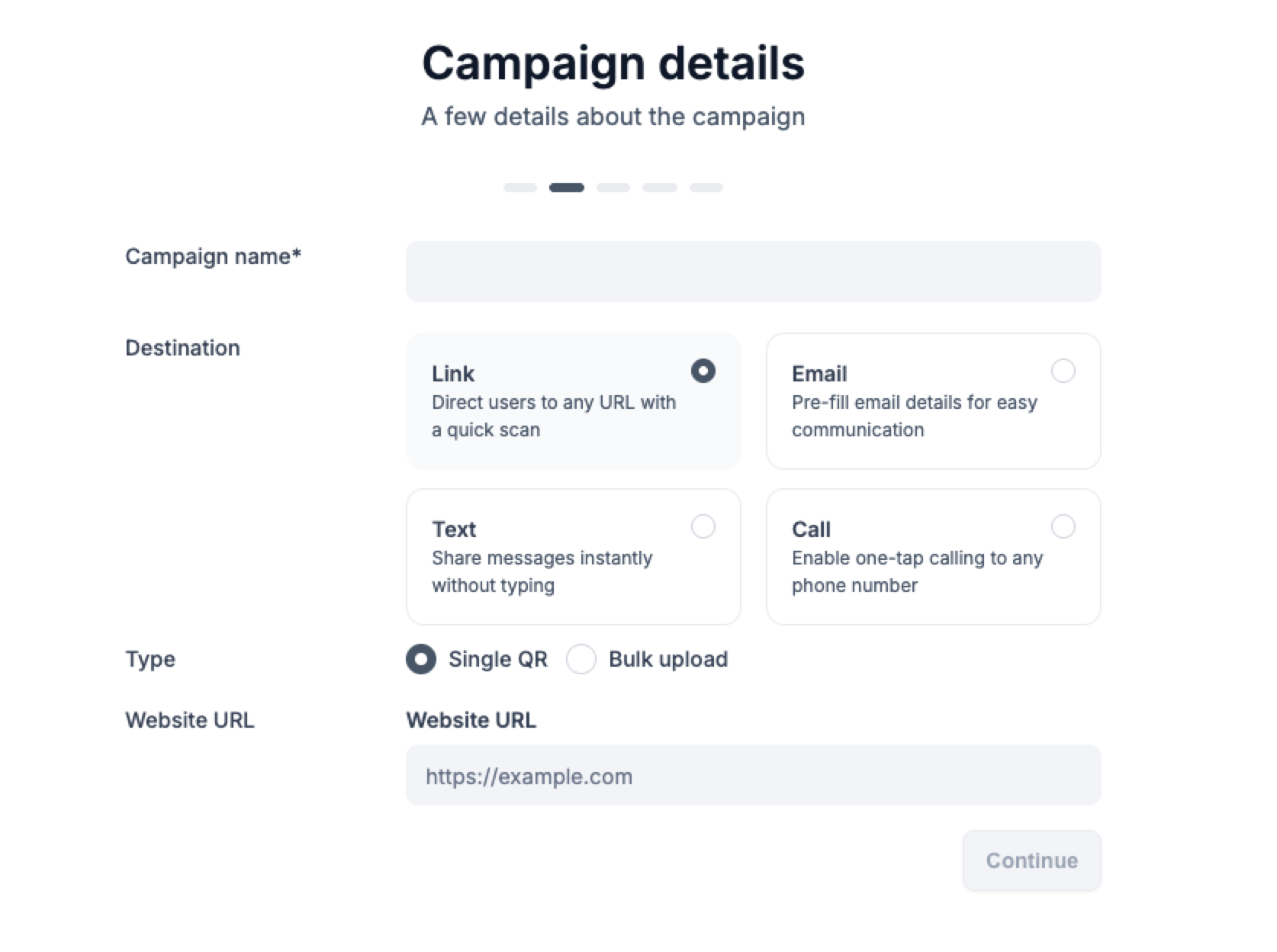
Enter a Campaign name (for example: Summer campaign 2025).
Under Destination, choose what happens when someone scans the QR:
Link – Opens any website URL
Text – Displays a text message instantly
Email – Pre-fills an email with your subject and message
Call – Enables one-tap calling
Step 2: Select single or bulk creation
Single QR: Create one code at a time.
Bulk upload: Generate multiple QR codes from a CSV file
Step 3: Customize your QR Code
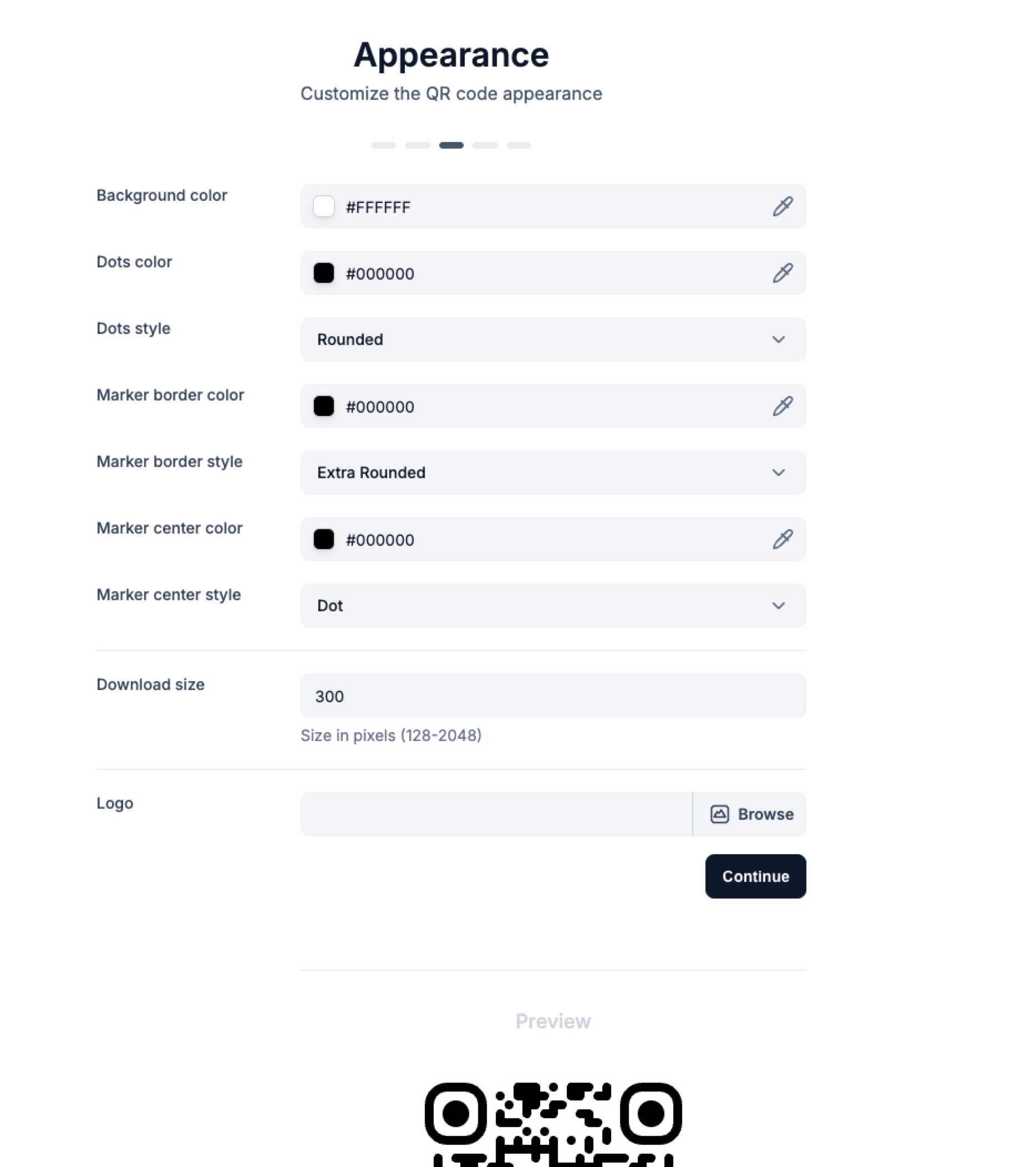
Once your details are added, move to the Appearance step to:
Choose background, dot, and marker colors
Upload a logo (SVG, PNG, JPG, or GIF, max 800×400px)
Preview the QR Code before publishing
Related help articles
Find additional guides and documentation that expand on this topic and help you solve similar issues.