This guide will walk you through the simple steps to get started with Campaign Builder - from creating your account to give your marketing agency access so they can manage your campaigns.
Follow these steps to set up your account:
.png)
Once your account is created:
If you work with an external agency, you can easily give them access to manage your campaigns.
All agencies with an account on Campaign Builder are assigned a partner account, which includes a unique Partner ID. You’ll need to obtain this ID from your partner. Once you have received it, follow the steps below.
Your agency will receive an email invitation and can join your workspace instantly.
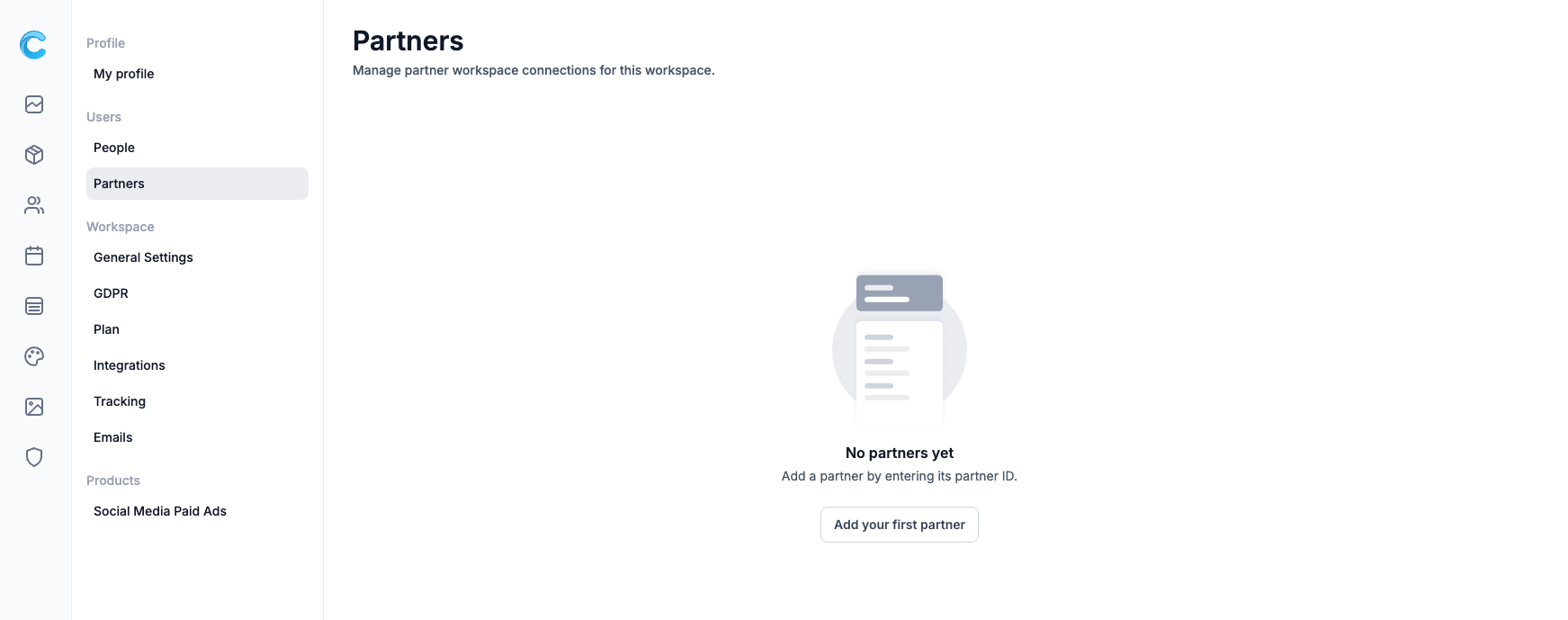
All invited agencies will appear in the list, and you can revoke any invitation at any time.
When you’re ready to start publishing campaigns, you’ll need an active subscription plan. Go to Settings → Plans and choose the plan that best fits your needs. You can upgrade, downgrade, or cancel your plan at any time.
.png)
If you have questions or want assistance with onboarding your agency, contact our support team use the in-app chat.

